This is an old revision of the document!
Table of Contents
Getting Started
These are the steps to install and configure AvaDroid.
Prepare the Avatar
Group Membership
Corrade requires a group for the AvaDroid to be a member of. One group can support many AvaDroids. Create a group with an easy to remember name. Invite your target Avatar to the group and accept. You and your Alt are now members of an exclusive by invite only group.

Outfits
The Doubled up Attach issue
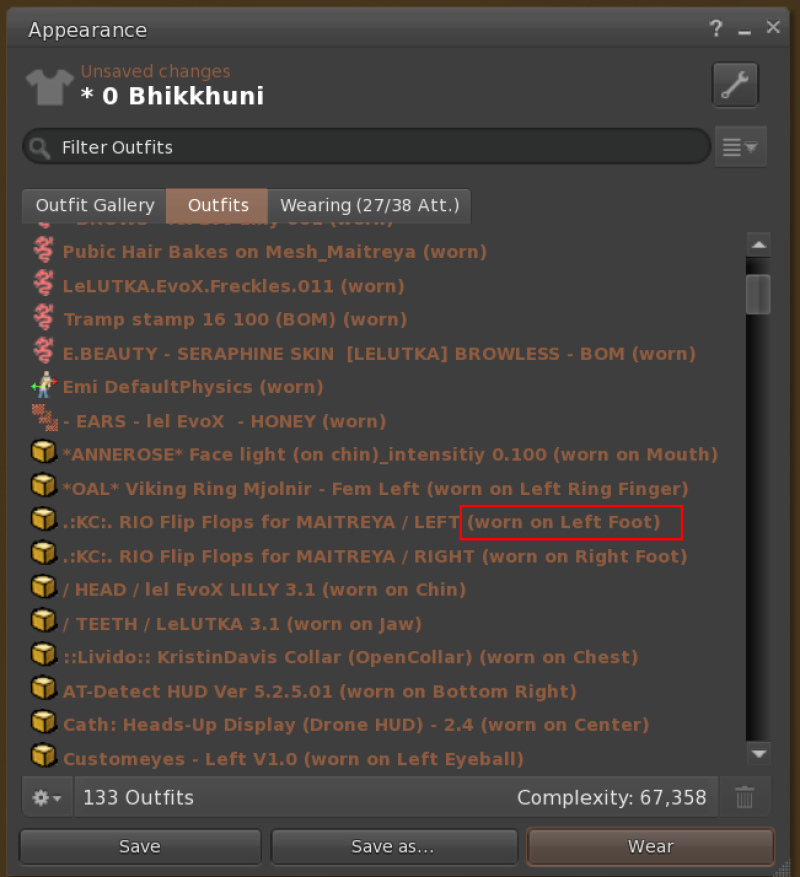
Corrade and Radegast for that matter, cannot attach 2 items to the same attach point. Many creators attache their product to the “Right Hand”, this will not do as items of clothing disappear when the AvaDroid Teleports or even just logs in. Some extra care to attach assets to the correct attach points is needed. (Left shoe to left foot, Hair to Skull etc.) Follow these steps.
- Log in as your Alt Avatar.
- Create an outfit as you normally do. I have a “Naked” outfit so I can use that as a base and attach items of clothing, then save as a new outfit. I am using Firestorm, but the process would be similar in other viewers.
- After the Outfit is saved, you can go into appearance and expand the the folder for that outfit. You will see the attach points for the various assets