
first_use
GUI First Use.
In a Browser enter http://<your docker server>:<the avadroid mapped port>
Example: http://192.168.1.10:18001, as per previous examples.
Click Login the default password is: corradecontrol . This will take you to the “Dash Board”,
- Click “Home” in the Navigation SideBar then change password.
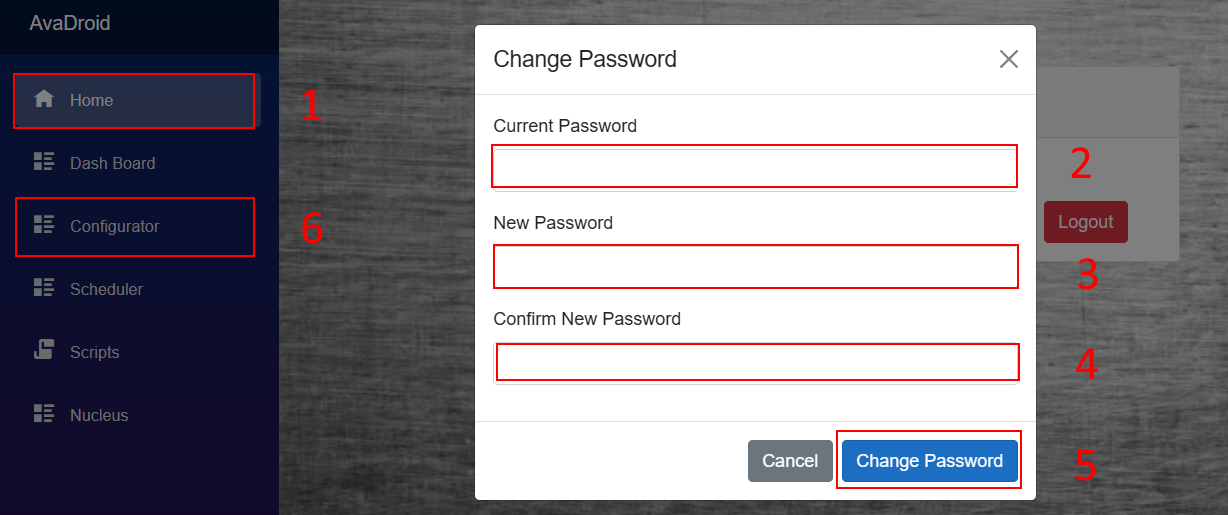
- Enter the current password (corradecontrol if default)
- Enter your new password
- Enter your new password again.
- Then click on change password
- You will be returned to the Home screen, click on Configurator in the Navigation SideBar.


- From your AvaDroid's Second Life Profile, Cut the UUID (on Firestorm, if you are not logged in as your AvaDroid, you can click on the cog icon, bottom right of the AvaDroid's profile, then copy UUID) and paste in the box overwriting what is there.
- Put in the first name and second name(s) of your AvaDroid, Typically these will be the Display Name. The first name should match the <name> used previously, but it doesn't have to. The first name will be how the AvaDroid is addressed. If someone looks at the AvaDroids Display Name, sees “Anne Ode” they may say “Hello Anne”. The AvaDroid recognises this name and respond
DO NOT USE FANCY CHARACTERS.
Age and Gender, set as you see fit. These are self awareness items. - Persona: This is where you can put the AvaDroids backstory. You can change this, about a paragraph will do. You don't have to do anything right away here.
- This is where you put your UUID and if you want UUIDs of other administrators seperate with a comma. Cut and paste what is called “Key” in Firestorm from YOUR profile.
- The LLM that Ollama will use. I recommend llama3.2 to start with, as it will run well on an 8GB VRAM GPU or bigger, it uses about 5GB. You can pull the LLM or I recommend, run it, which will pull and run a command line session. So, Via SSH or Console on the machine running Ollama (it may be the same one as your docker or a totally different machine run
ollama run llama3.2. Wait for the LLM to be pulled and the chat prompt is shown. Have a chat to test that it works. The type /bye to close. If you want to list your LLMs typeollama list. Cut and paste the Modelllama3.2or whatever model you want to use. leave off the tag like :latest in llama3.2:latest. llama2-uncensored will not work. Disregard what the graphic says. - Edit the IP number of your Ollama server. It should look like http://192.168.1.11:11434/api/generate . Just the IP leave :11434/api/generate as it is.
- This section should reflect the settings you did previously direct to the config.json file.
- Click Save. The Name at the top of the page should change.
Now back at your terminal session on the machine that runs docker type docker restart <name>-avadroid. This should restart and reread the config.json file. You will need to refresh the WebGui pages
You are now ready to login. Read through the operations chapters first.
first_use.txt · Last modified: by robyn